
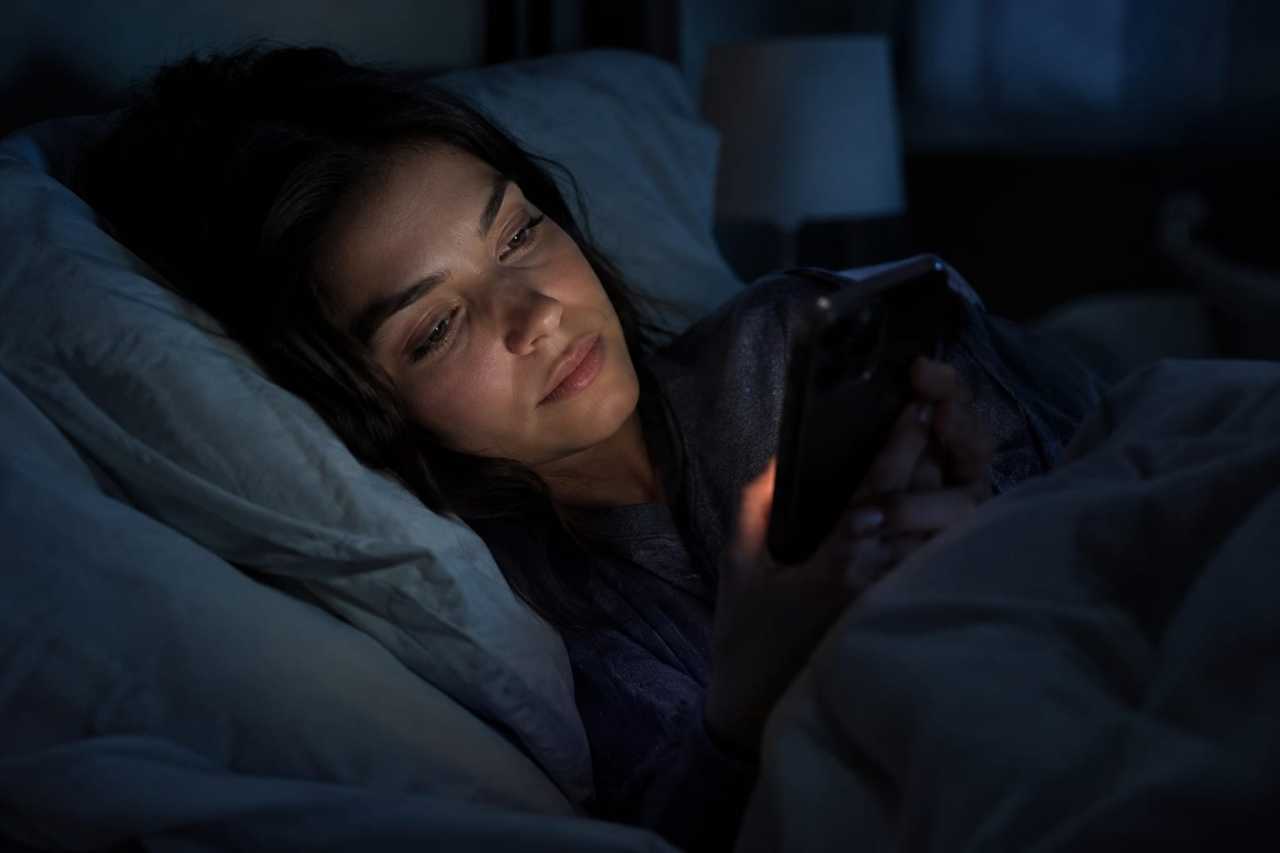
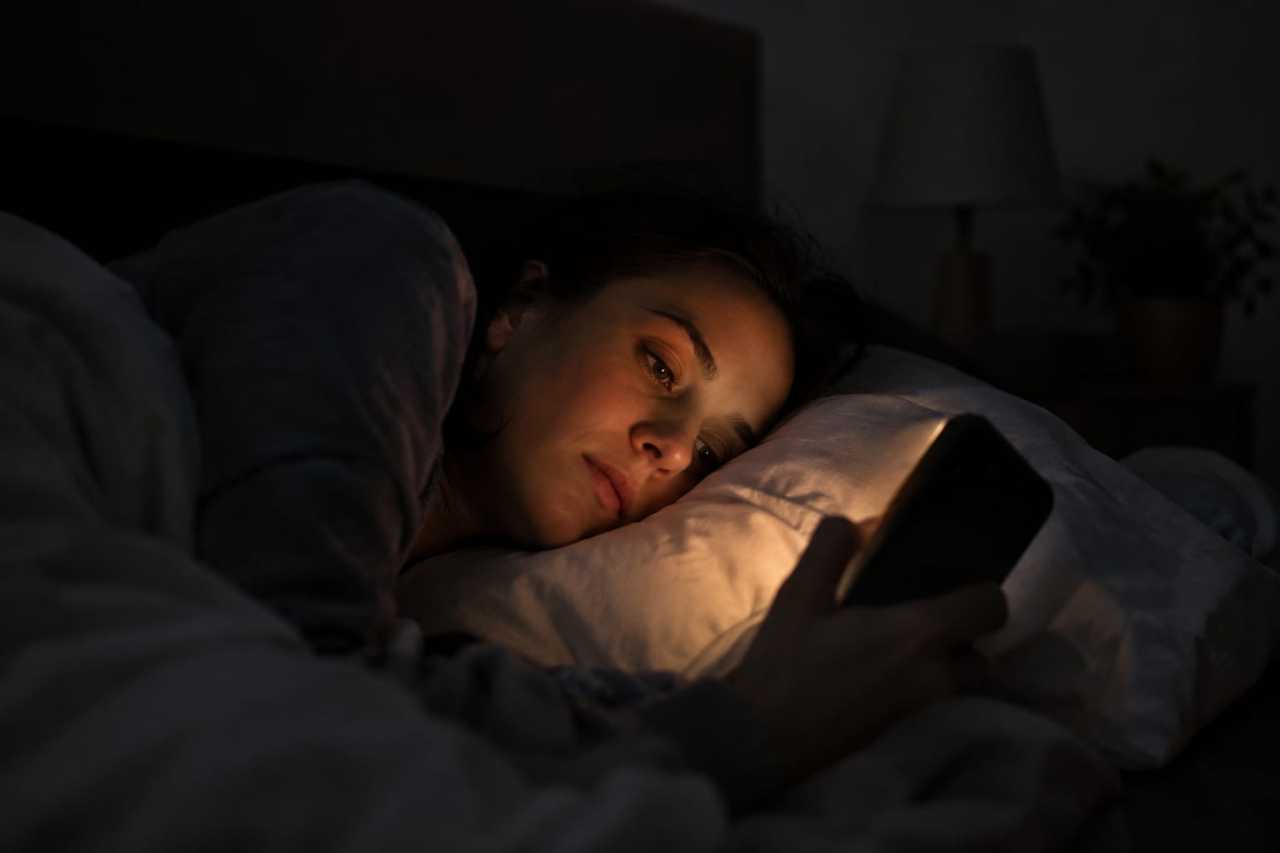
If you scroll on your iPhone in bed, there is a setting that can help your eyes. It is hidden inside the Accessibility menu, and it lets you dim your screen past the normal lowest setting.
Here is the plain truth about why this matters. Many newer iPhones can already dim down to a very low light level. But in a dark room, even that can feel too bright, especially if someone is sleeping next to you. Apple built a feature called Reduce White Point for people who are sensitive to bright colors. It turns out to also be a handy trick for anyone who wants a darker screen at night.
What this means for you

You do not need to be a tech expert to use this. The site's goal is to explain phone features in plain words, so busy people do not need a dictionary just to adjust their screen. Here are three simple ways to make your iPhone easier on your eyes at night.
Turn on Night Shift. This feature changes your screen to warmer colors as the day turns to night, then switches back in the morning. Go to Settings, then Display & Brightness, then Night Shift. You can set a schedule or turn it on all day. You can also use the Control Center by holding down the Brightness icon and tapping Night Shift.
Reduce White Point. This setting softens how bright and intense colors look on your screen. Go to Settings, then Accessibility, then Display & Text Size, and turn on Reduce White Point. A slider lets you control how strong the effect is. You can also add this to your Accessibility Shortcut, so three quick clicks of the side button turns it on or off.
Use Zoom with a Low Light filter. This option adds a dark filter over your whole screen, making it dimmer than your lowest brightness setting. Go to Settings, then Accessibility, then Zoom, and pick Low Light under Zoom Filter. You can also triple-click the side button to turn Zoom on or off from anywhere.
Each of these tools does something slightly different. Night Shift changes color warmth. Reduce White Point softens bright colors. Zoom with Low Light simply darkens everything on the screen.
Used together with Dark Mode, these settings can make nighttime scrolling much gentler on your eyes. None of them require extra apps or special skills.
As a next step, open your Settings app tonight and try turning on Reduce White Point. See how much more comfortable your screen feels before bed.
Still catching up? Start with 4 Cheap Dollar Tree Buys That Can Help Clear Your Mind, Not Just Your Clutter