

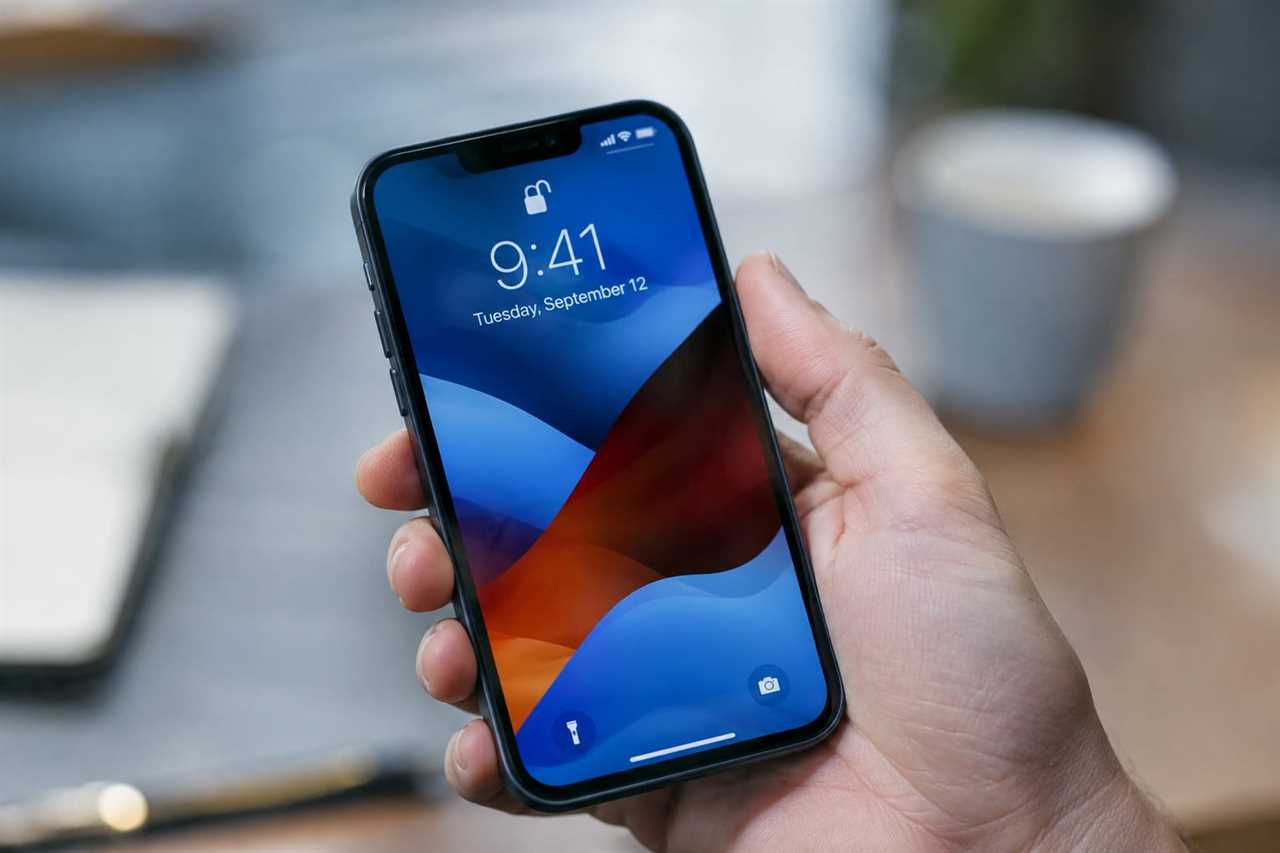
Apple has added a new safety tool to iPhones and iPads called Impersonation Risk Detection. It comes with iOS 27 and iPadOS 27, and it is built to catch social engineering scams, the kind of tricks that fool you into doing something risky even when your other security tools miss them.
This site exists to explain tech news like this in plain terms, for people who are busy but still want to understand what is changing on their phone. You should not need a dictionary to read the news, so here is what this feature actually does and how to turn it on.
What this means for you
Social engineering scams work by tricking you, not your device. A scammer might pose as your bank or a coworker to get you to send money or share a password. This new feature watches for warning signs when you try to do something risky in a supported app, and it can warn you before you fall for it.
Here is how it works. When you try a sensitive action, like making a payment, changing a password, or sharing account details, the feature checks your Apple account and device for signs of trouble. It then sends the app one of three risk levels:


- Unknown: No suspicious activity was found, but that does not mean the action is safe.
- Medium: Some signs of suspicious activity were found.
- High: Strong signs of suspicious activity were found.
The app itself decides what to do with that information. It might ask you to verify who you are, show a warning, or pause the action. Apple does not make that call, the app does.
Apple says it never sees your actual content in apps like Mail, Messages, or Photos. It only learns what kind of action you tried to take, and the app only gets the risk level, not the details behind it.
Because of how much access this needs, the feature is turned off by default. Here is how to turn it on:
- Open Settings and tap Privacy & Security.
- Scroll down and tap Impersonation Risk Detection.
- Turn on the switch for "Share with App Developers."
- Wait up to 24 hours for it to fully activate.
Once it is on, that same settings screen will show which apps use the feature, what actions triggered checks, and let you turn it off for any app you choose. Apple has not named which apps support it yet, built-in or outside ones can use it, but the more that do, the more people it could protect.
As a next step, open your Settings app today and check if Impersonation Risk Detection is available on your device.
Before this, we covered: iPhone Trick Lets You Say "Next" to Scroll TikTok Hands-Free