


A tech writer at Android Police says he used ChatGPT on his Android phone for months the basic way. He would open the app, type a question, get an answer, and close it. After digging into the app's settings, he found five changes that made ChatGPT far more useful.
Here at this site, we try to explain tech news in plain words. You should not need a dictionary to understand a story about an app you already use every day. This one is a good example of simple settings making a big difference.
What this means for you
If you use ChatGPT on Android, you may be using it the same basic way. A few setting changes could save you time and make the app work more like a helper than a search box.

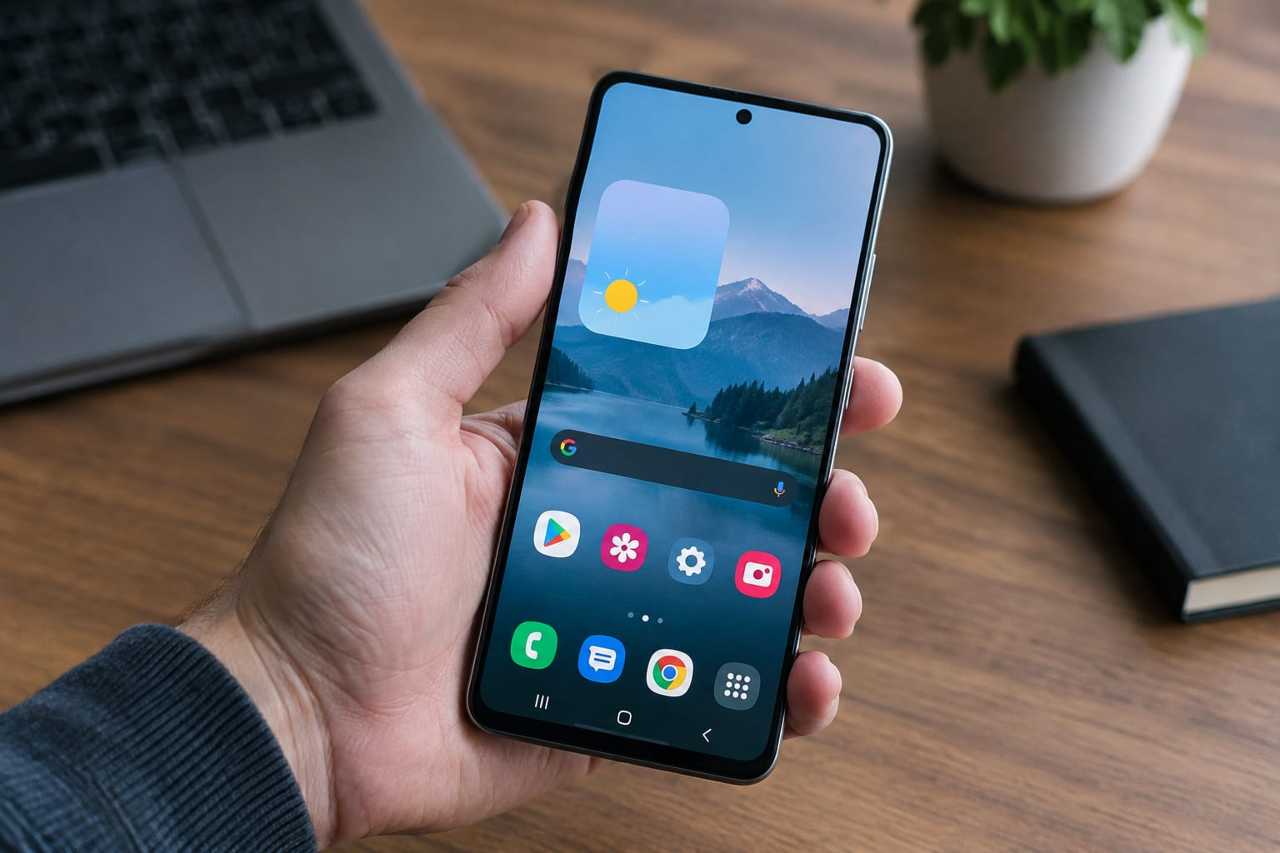
Make it easier to reach. The writer added a ChatGPT widget to his home screen for quick access to chats or Voice. He also set ChatGPT as his phone's default digital assistant, so he can open it with a gesture instead of hunting for the app. He notes ChatGPT cannot control an Android phone as deeply as Google's Gemini can, but he says that trade-off is worth it for him.
Tell it how you like answers. He went into Settings, then Personalization, and adjusted the tone, cut down on headers and lists, and changed how often it uses emojis. He also filled in Custom Instructions with details about his job as a tech writer and how he likes information presented, like clear explanations and short answers unless he asks for more.
Talk instead of type. He switched to using ChatGPT's Voice feature for many tasks, like brainstorming headlines or sorting his thoughts out loud. He also turned on background conversations, so he can keep talking while using other apps or when his phone is locked.
Let it work on its own. He set up scheduled tasks, including a daily morning briefing on Android, AI, and self-hosting news. He also uses it for weekly summaries and reminders, all set up using plain language instead of complex menus.
Connect your apps. He linked Gmail, Google Calendar, Notion, and Google Drive to ChatGPT. This lets him ask it to check his schedule, pull up documents, or summarize long email threads without switching apps. He says he hopes ChatGPT adds support for Google Photos, YouTube Music, Google Keep, and Tasks in the future.
He says his biggest mistake was not using bad prompts, but treating ChatGPT like a simple question-and-answer tool instead of a real assistant.
Your next step: open ChatGPT's settings on your phone and try just one change, like adding the home screen widget or writing a short custom instruction. See if it makes your next conversation easier.
Related reading from us: This Countertop Dishwasher Cleans In 15 Minutes, And It's 20% Off