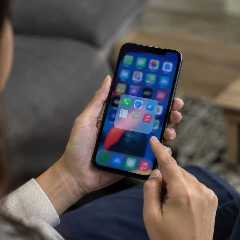

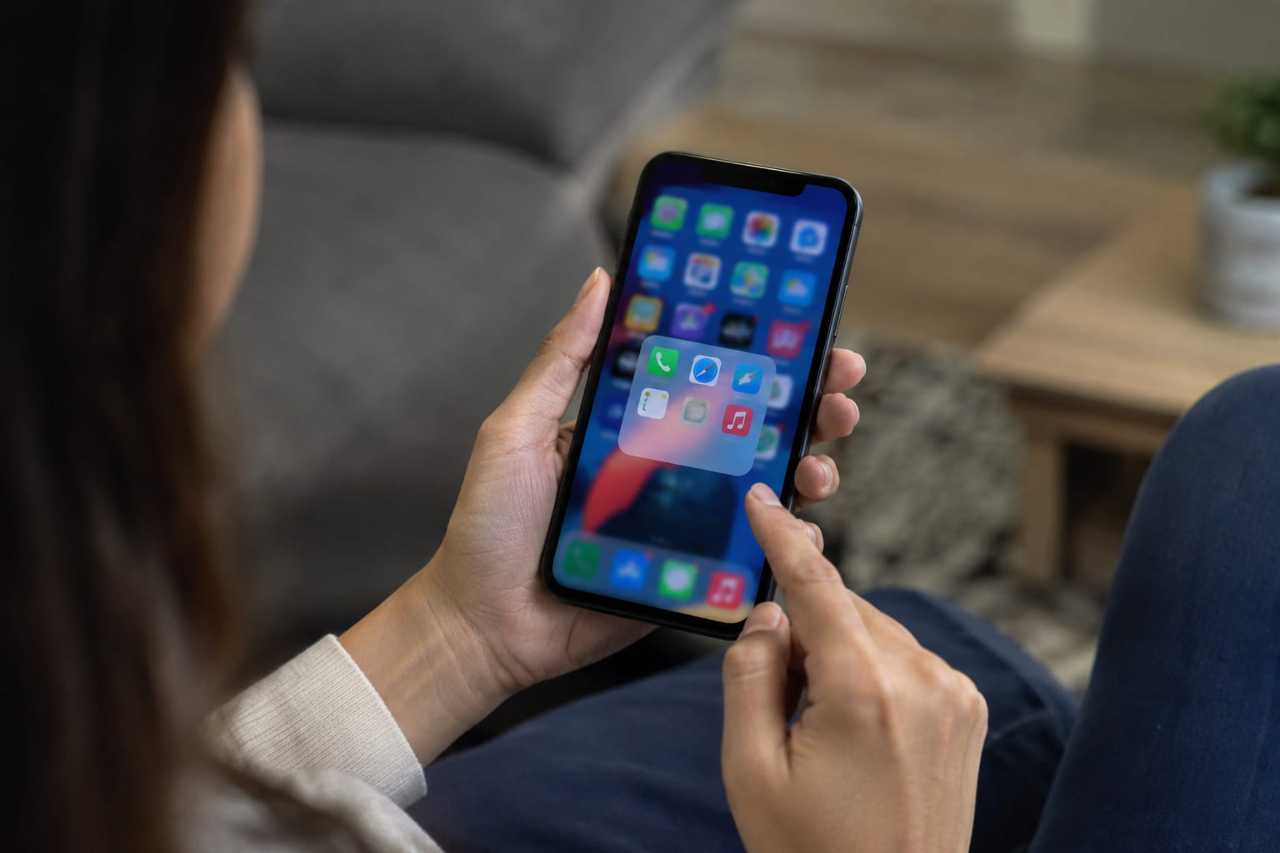
Apple has outlined simple ways to hide apps on an iPhone so they stay off your Home Screen but remain fully installed. The right method depends on which version of iOS you have, since newer software offers stronger protection than older versions.
If you have ever wanted to tidy up your Home Screen or keep certain apps more private, this site exists to walk you through it in plain terms. You should not need a tech dictionary to understand your own phone.
What this means for you
Before you start, check your iOS version. Go to Settings, then General, then About, and look at iOS Version. This step matters because the tools you have depend on it.
- On iOS 14 through iOS 17, you can remove icons, hide whole Home Screen pages, or limit search results. None of these lock the app. They just make it less visible.
- On iOS 18 and later, you get those same options plus a true lock. Eligible apps can move into a Hidden folder that needs Face ID, Touch ID, or a passcode to open.

To remove an icon without deleting the app, touch and hold it, tap Remove App, then choose Remove from Home Screen. The app still lives in your App Library. Anyone using your unlocked phone can still find and open it there, so this only changes what you see, not who can get in.
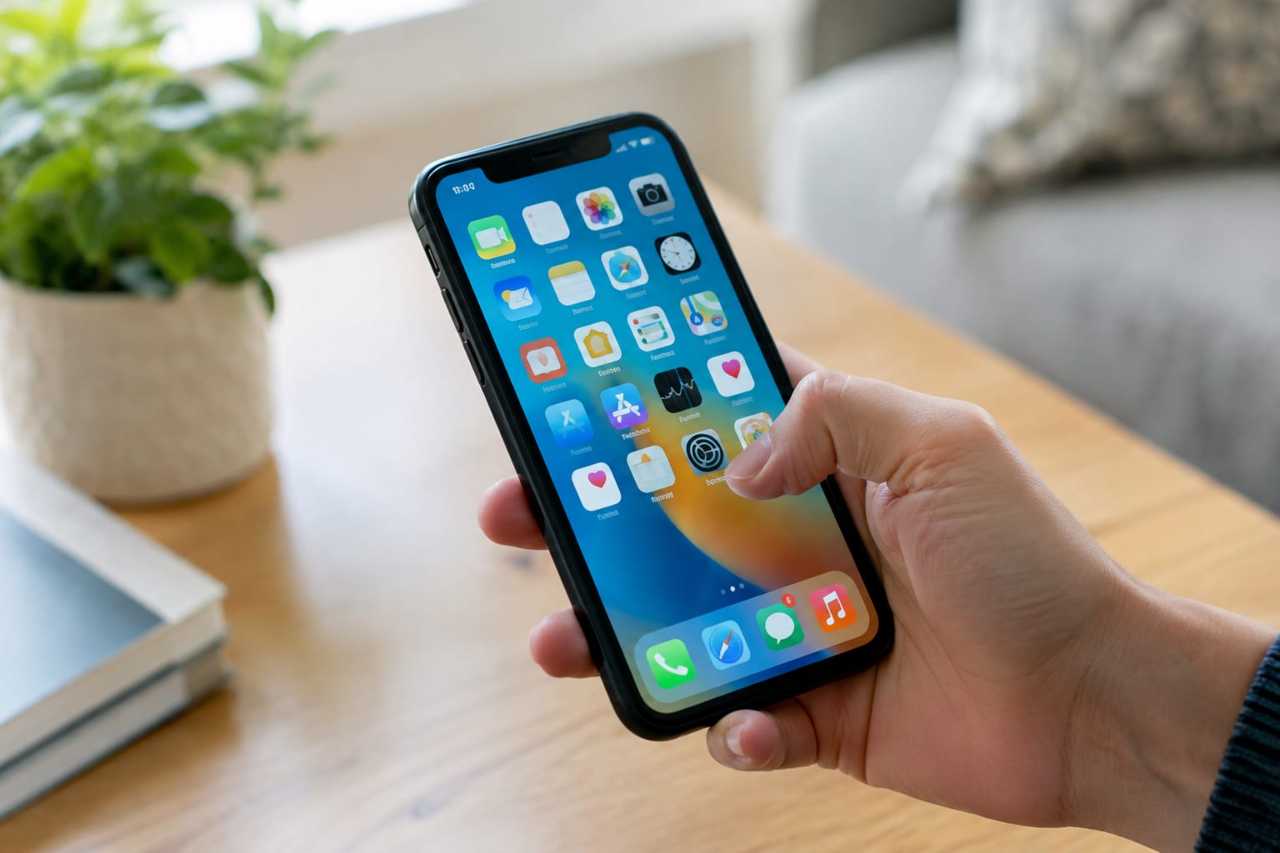
To hide a whole page, touch and hold empty space on your Home Screen until icons jiggle, tap the row of dots near the bottom, then uncheck the page you want gone. Its apps still sit in App Library and you can bring the page back anytime.
To stop an app from showing up in search, go to Settings, then Search, select the app, and turn off Show App in Search. On older software, look under Settings, Siri & Search, and the app's name instead.
If you have iOS 18 or later and want real protection, touch and hold an eligible app, tap Require Face ID, then Hide and Require Face ID. Confirm with your authentication method, and the app moves into a Hidden folder inside App Library. Not all apps qualify. Apple leaves out preinstalled apps and some default app choices.
To unhide an app, open App Library, tap Hidden, authenticate, then touch and hold the app and choose Don't Require Face ID.
Keep in mind that hiding an app does not erase all traces of it. Screen Time, battery stats, and your App Store purchase history can still show its name. Hidden apps also share your phone's passcode, so anyone who can unlock your iPhone may still open them.
Start by checking your iOS version in Settings today, then pick the hiding method that matches what you actually need: a cleaner screen or a real lock.
If you missed it: How to Remove Deodorant Stains From Dark Clothes: 4 Easy Tips