

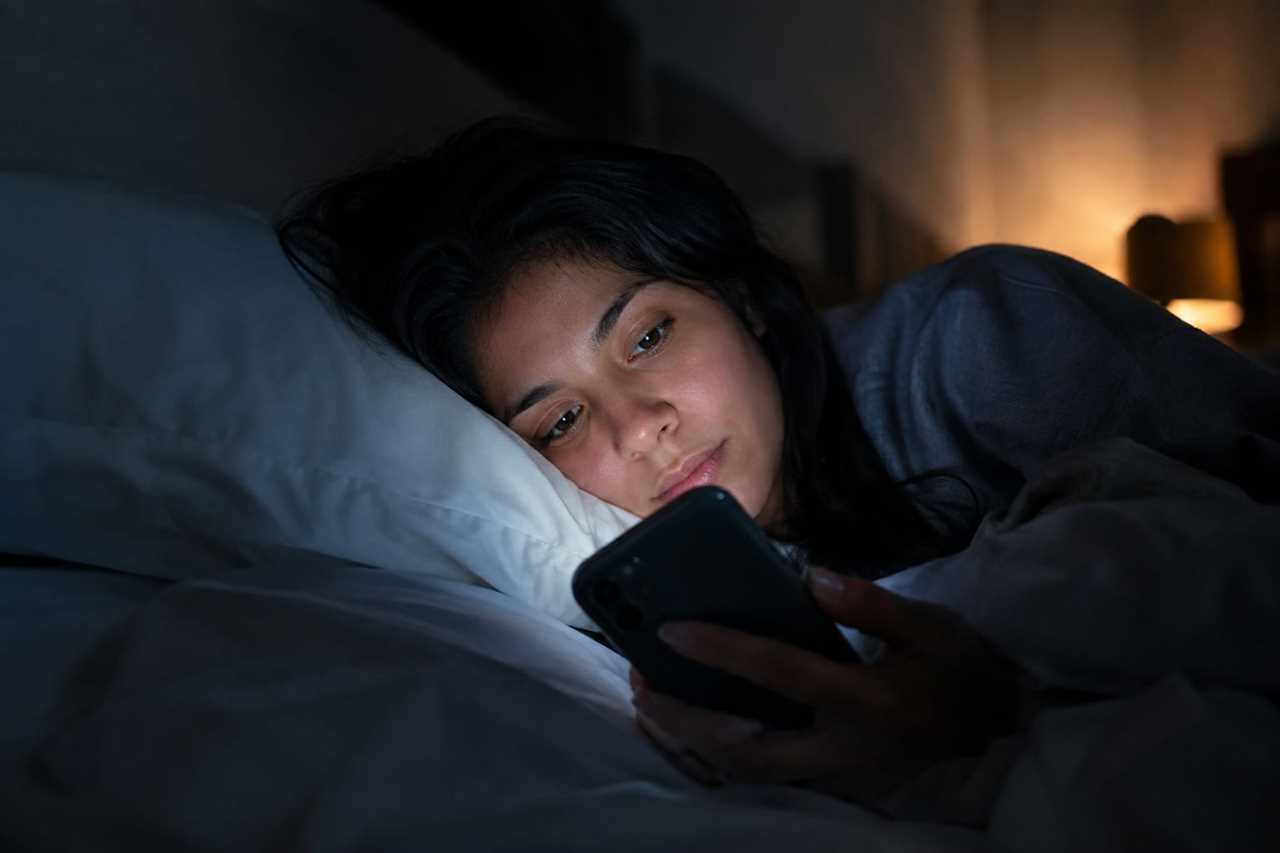
So you're lying in bed scrolling your iPhone, and even on the lowest brightness setting, it still feels like a flashlight in your face. There are a few hidden settings on your iPhone that can make your screen even dimmer than its normal lowest setting, and they are easy to turn on.
Bright screens at night are not just annoying. Blue light from your phone can mess with your sleep cycle, making it harder to fall asleep and get good rest. Most newer iPhones can dim down to one nit of brightness, but in a dark room that can still feel too bright, especially if someone is sleeping next to you.
This site exists to explain tech news like this in plain terms, because nobody should have to look up a dictionary just to understand their own phone. Here are three settings worth knowing about.
What this means for you
You do not need a new phone or a special app to fix this. Your iPhone already has tools built in. You just need to know where to find them.
Turn on Night Shift. This setting warms up your screen's colors as it gets later in the day, based on your phone's clock and location. Go to Settings, then Display & Brightness, then Night Shift, and either schedule it or turn it on all day. You can also use the Control Center by holding down the brightness icon and tapping the Night Shift button.
Reduce the white point. This setting dulls how bright and intense colors look on your screen. Go to Settings, then Accessibility, then Display & Text Size, and turn on Reduce White Point. A slider will show up so you can adjust how strong the effect is.
Use Zoom's low-light filter. This one actually makes your screen darker than its lowest brightness setting allows. Go to Settings, then Accessibility, then Zoom, and pick Low Light under Zoom Filter. Once it is set up, you can turn it on anytime by triple-clicking your phone's side button.
Night Shift may not stop blue light from affecting your sleep as much as people once thought. But it still cuts down on blue light overall, which is a win for your eyes.
Your next step is simple. Open your Settings app right now and try the Reduce White Point toggle first, since it takes only a few seconds and you will notice the difference immediately.
Explore the rest of the site: DriveGadgets.com